Live Streaming Instructions
This page walks through live streaming videos using YouTube and an app called Larix. Before starting you will need:
- A YouTube account (can log in with any Google/Gmail account)
- The free Larix broadcaster app (download at the Apple App Store or Android Play Store).
To stream the game, you first setup the video on YouTube, and then connect to the video using Larix.
- Jump to YouTube Setup - this is where you setup the stream and copy two important URLs (one for parents, and one to copy into Larix).
- Jump to Larix Setup - this is what you will use on your phone/tablet to actually stream the game (it will point to one of the YouTube URLs).
YouTube Setup
Your live stream will be hosted at YouTube, and we are going to setup an unlisted URL to share with the team. The unlisted URL will allow parents to share with friends/family, but it will not be available to the general public. To get started, log into YouTube with your Google/Gmail account at: https://www.youtube.com/. Note that working with YouTube is easiest to do on a computer/laptop using a web browser, rather than on a phone/tablet.
Start the process by verifying your YouTube account at the verification page. Note that the verification process can take up to 24 hours.
Once you are verified and logged in, click on the small video camera icon on the top right, then select Go Live.
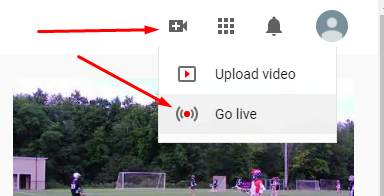
This will take you to YouTube Studio where you set things up.
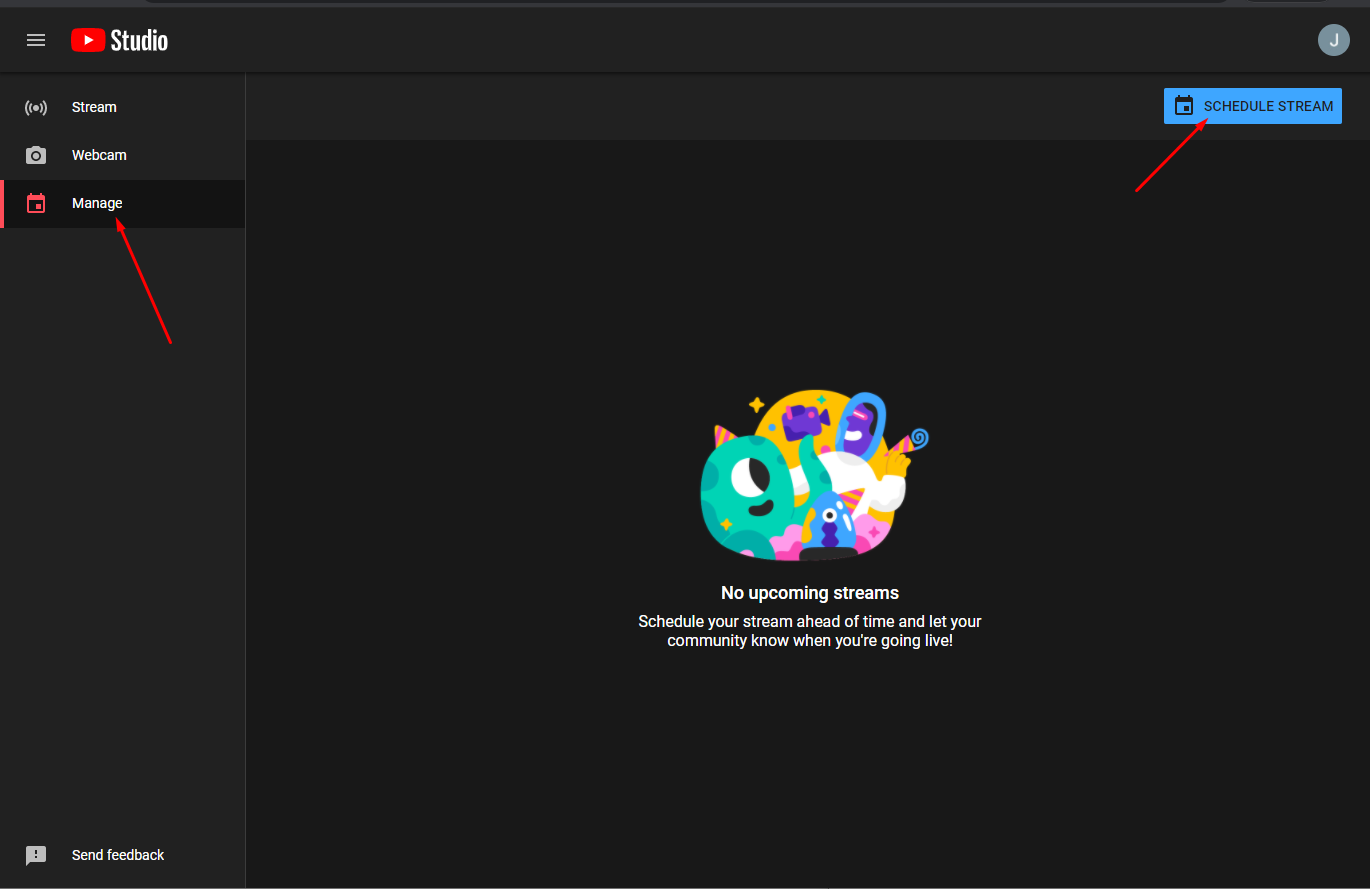
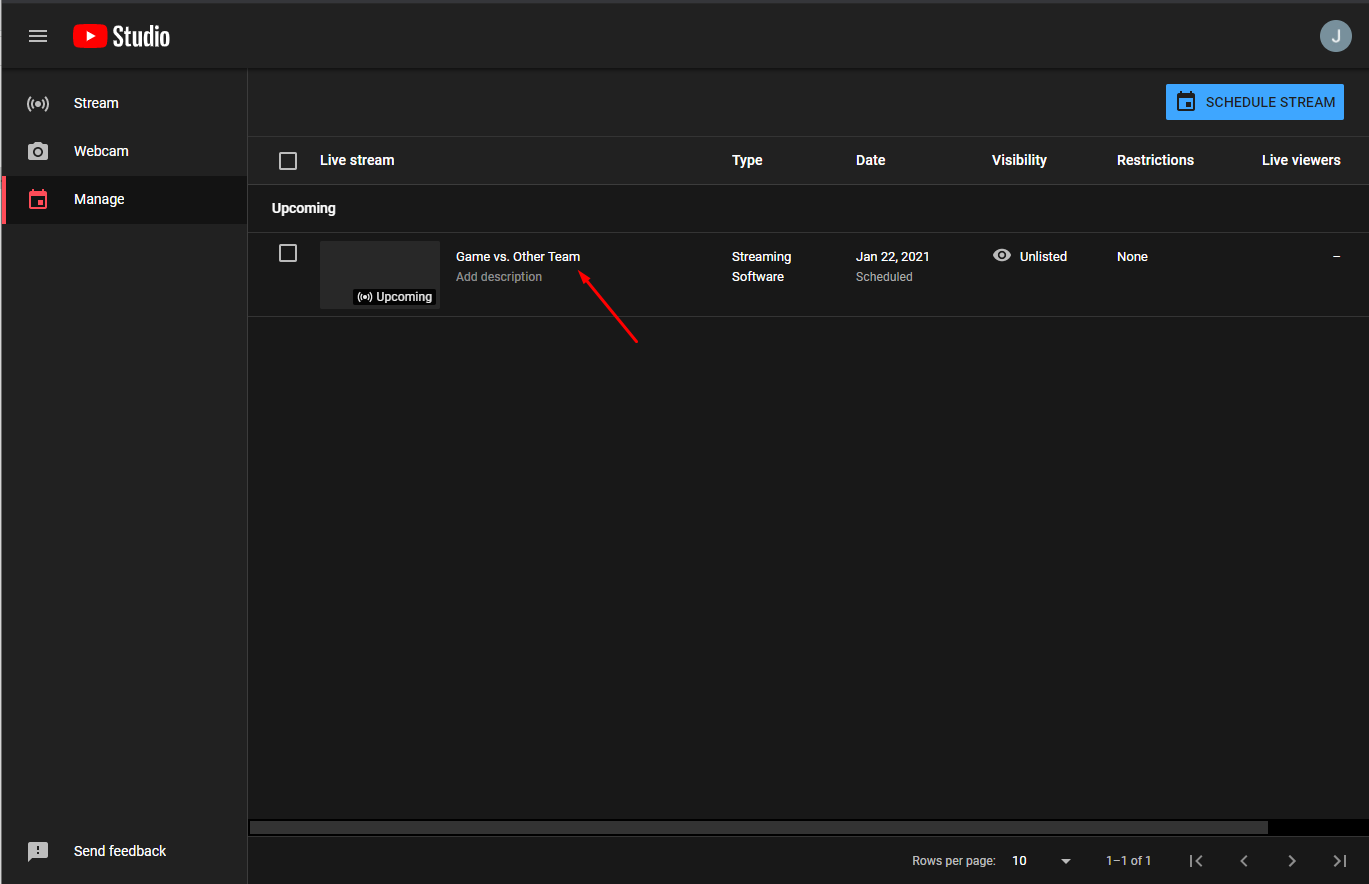
Click on the Manage tab on the left, then click on the Schedule Stream button on the top right.
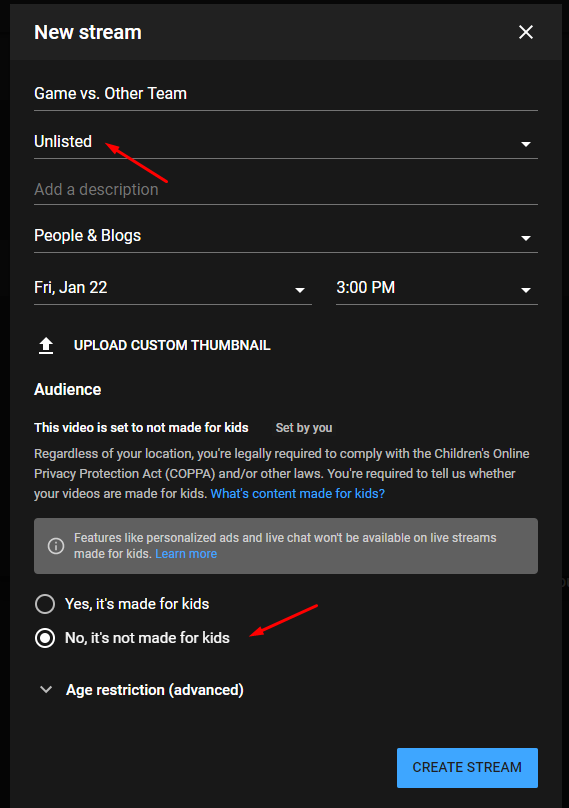
First, fill out the basic details of the live stream you are setting up. You will do this for every game.
- Use a unique name as the title - e.g. game date and opponent as the title (1/17/2021 vs. Lakers).
- Select Unlisted as the type of stream - this will prevent the general public from viewing.
- Description is optional - shows up under the title on the video page.
- I usually choose Sports as the category.
- Set the date and time of the game.
- You can upload a thumbnail that will show up in the video before you go live. I use the league's logo.
- Mark that it is not made for kids. That is an option for cartoons, etc. This is for parents.
- Do not change anything in age restrictions.
After saving the stream, you will see it in the list view. We need to change a few other things about it before you are ready. Click on the event you just created.
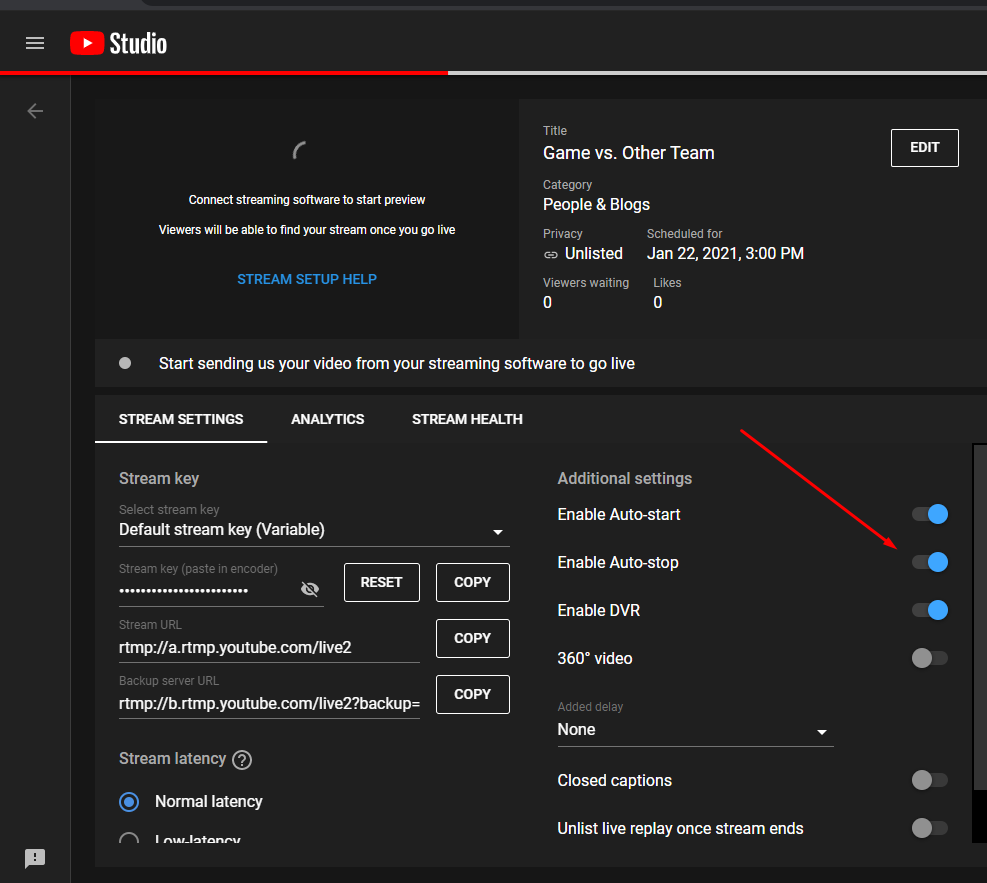
First, turn on Enable Auto-start and Enable Auto-stop.
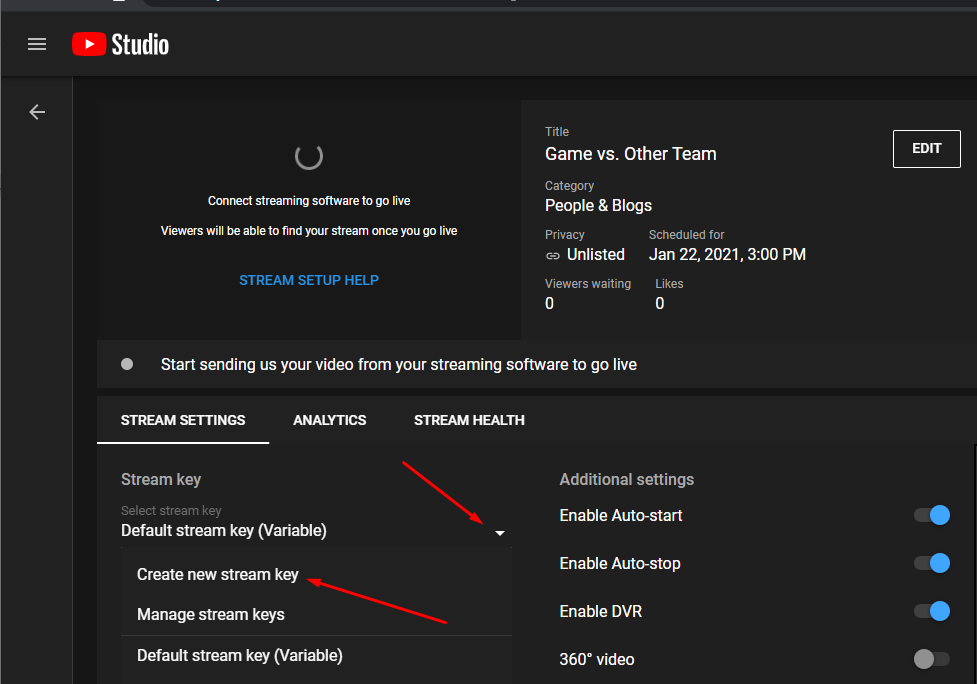
Next, you will create a new Stream Key. This is a unique/secret address for your live stream. Click on the arrow next to Select Stream Key and click Create new stream key.
You will create a new Stream Key for each of your games.
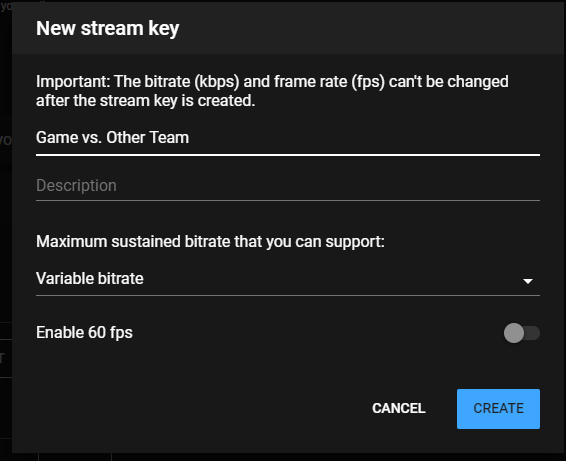
The Stream Key name should be unique - I just use the same name as the game I created (e.g. 1/17/2021 vs. Lakers).
Just enter the name, and leave everything else as it is.
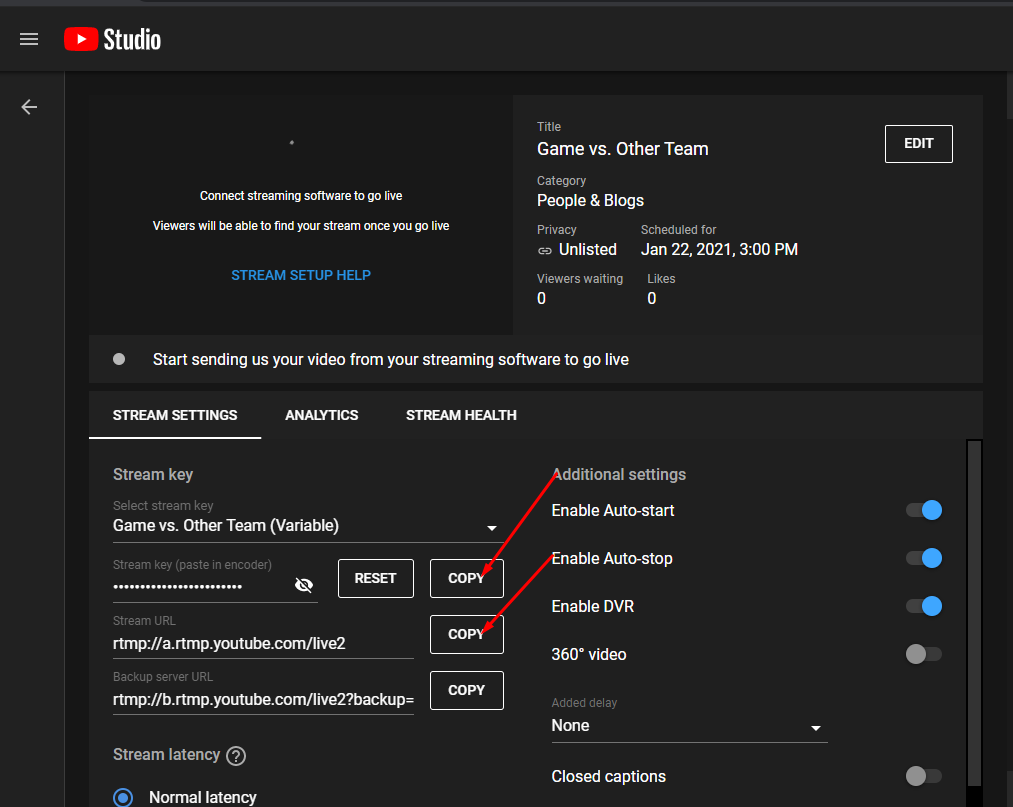
You are now complete with the setup for a game. Before leaving YouTube, there are three values you must copy.
On the stream settings page, copy both the Stream Key and Stream URL. You should paste each into a text or Word document. These two values make up the broadcast URL that you will use in the Larix app
setup below. The Stream Key will look something like f6w9-jfuw-3dqw-z64f-3x9b and the Stream URL will usually be rtmp://a.rtmp.youtube.com/live2.
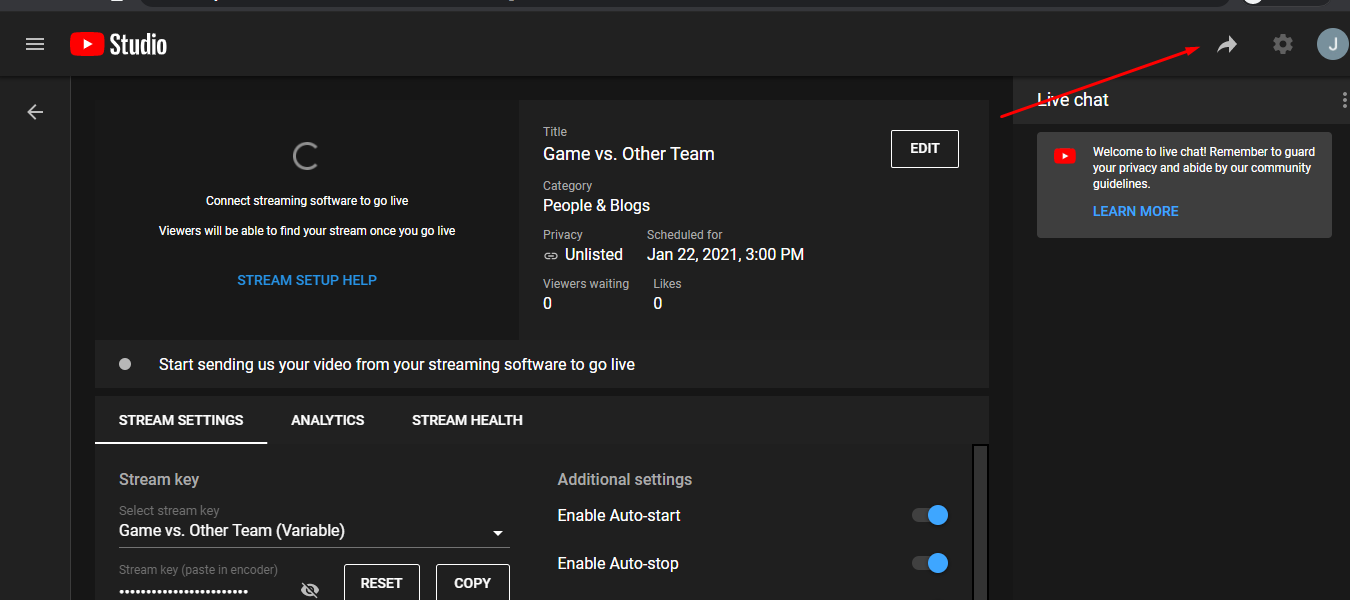
The third thing to copy is the URL you will send out to parents. Click on the share icon on the top right of the page.
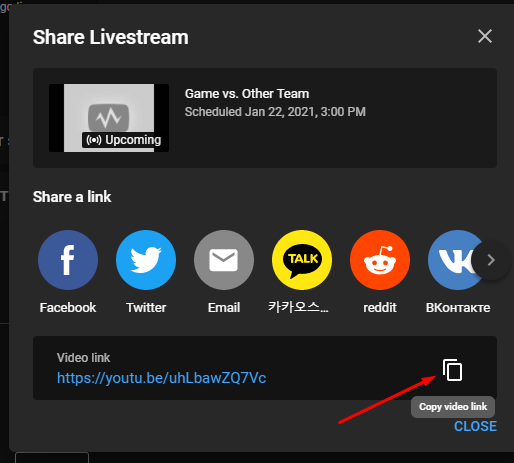
When the popup appears, copy the Video URL for parents at the bottom of the screen. Paste this into your text/Word document as well.
It will look like https://youtu.be/uhLba6ZQ7Ve.
After you have those three values copied/pasted, your YouTube setup is complete.
You can send the Video URL (the one that looks like https://youtu.be/uhLba6ZQ7Ve) to the parents and they can share it with family and friends.
Larix Setup

Larix is a free app that lets you stream to YouTube from your phone. You can download the app at the Apple App Store or Android Play Store.
The app icon appears on the left to help find it in the store, and this part of the process is done on your phone/tablet (what you bring to the game to stream).
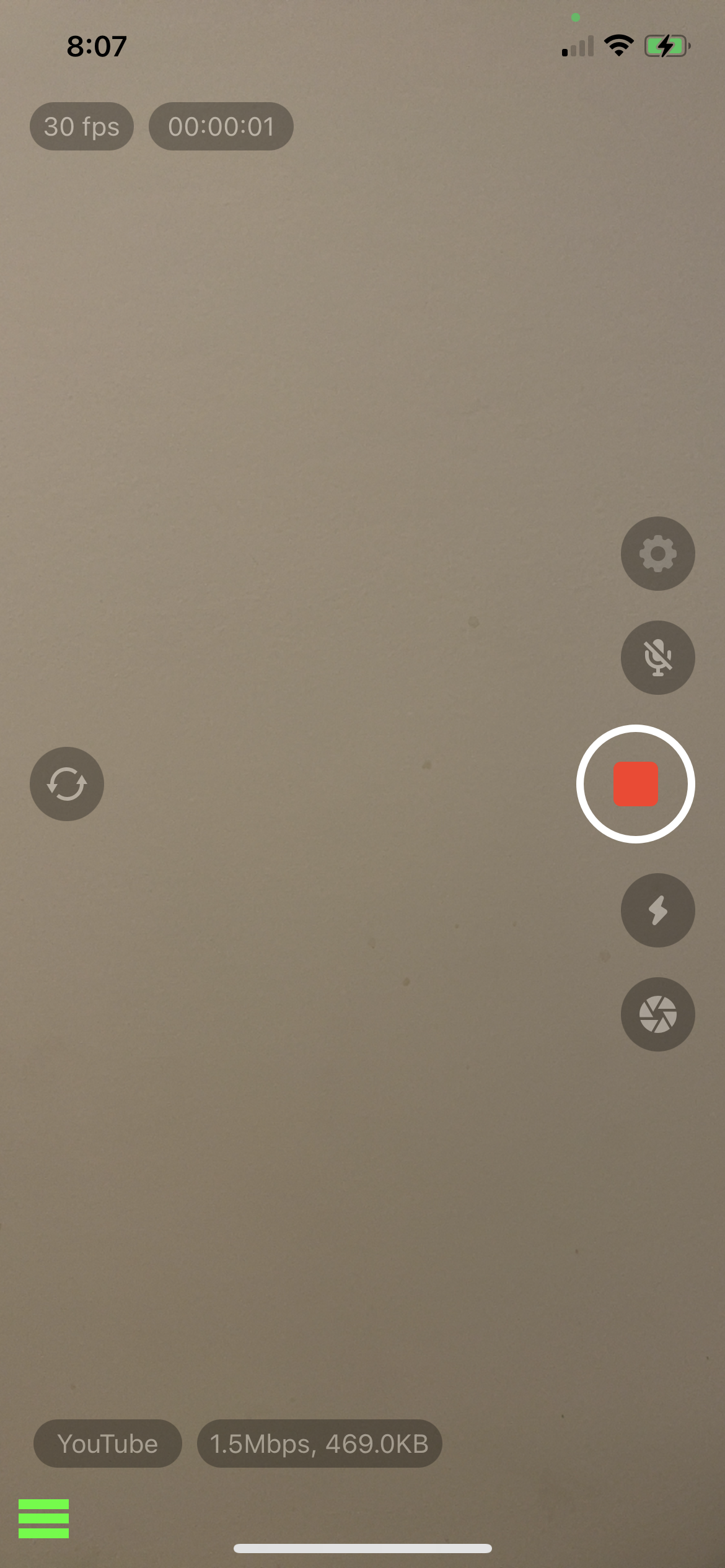
Once you open Larix, you will see a screen like the one below. All you need to do it point Larix at the YouTube stream you setup above.
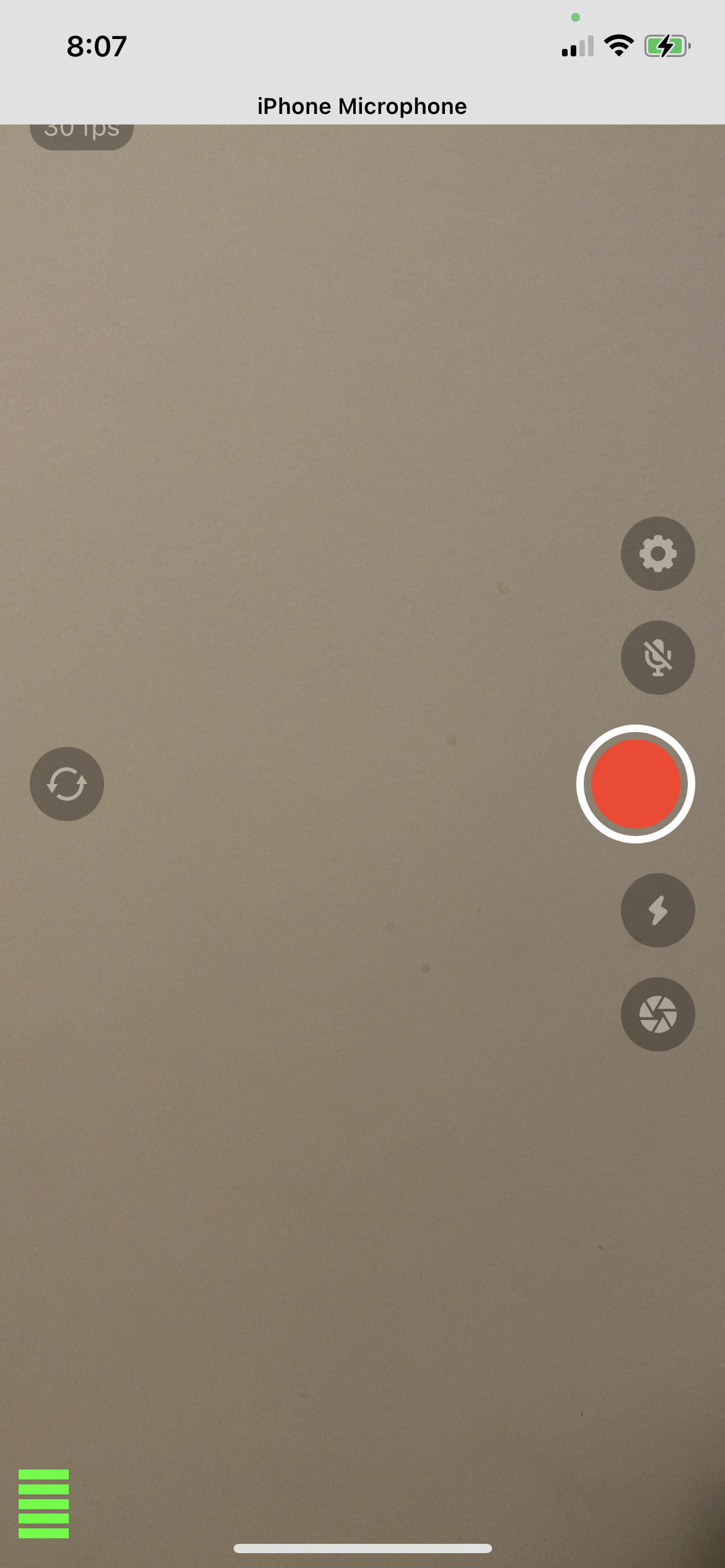
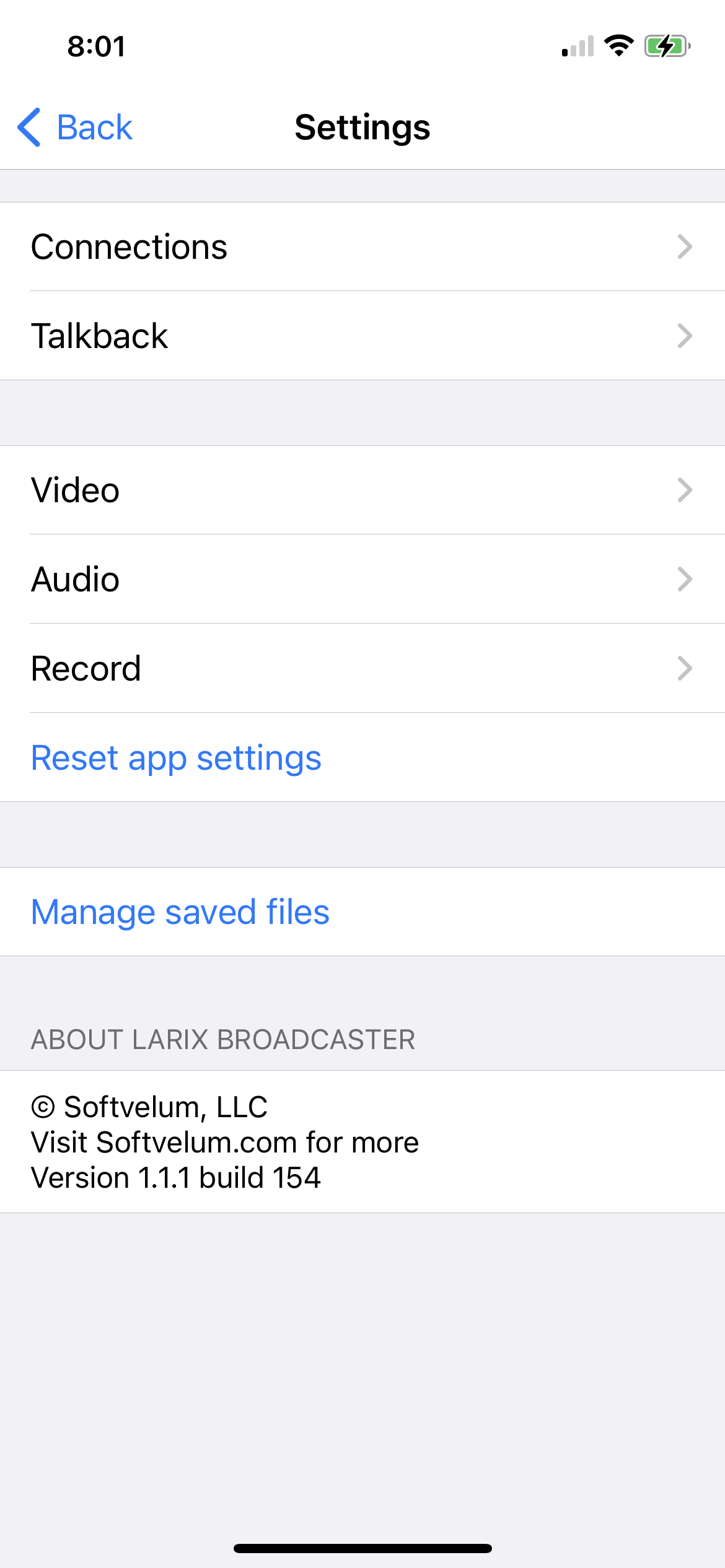
Click on the gear icon (small wheel above the red button and mic icons) to bring up the Settings. Once you are on the Settings page, click on the Connections link.
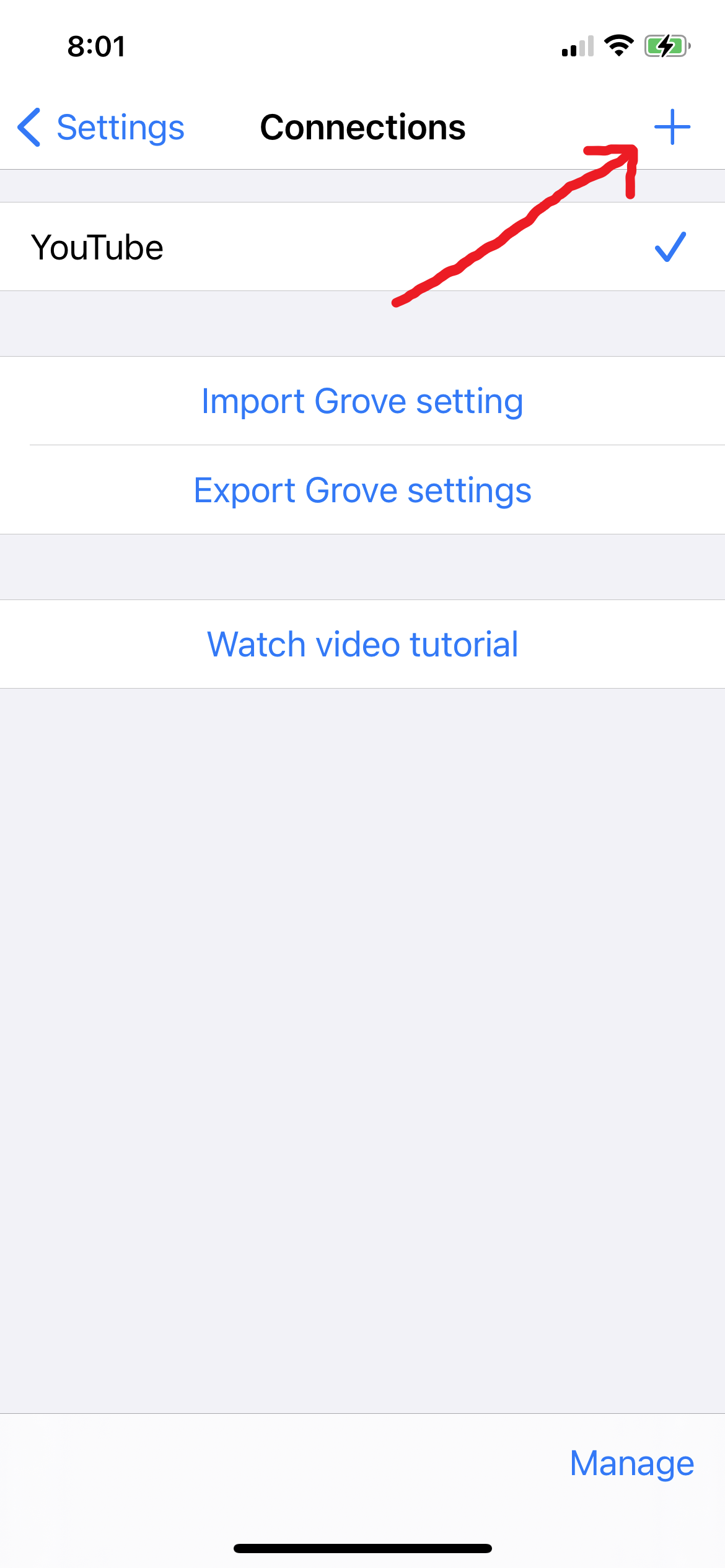
We need to create a new connection to link to your YouTube stream, so click on the + icon at the top right of the screen.
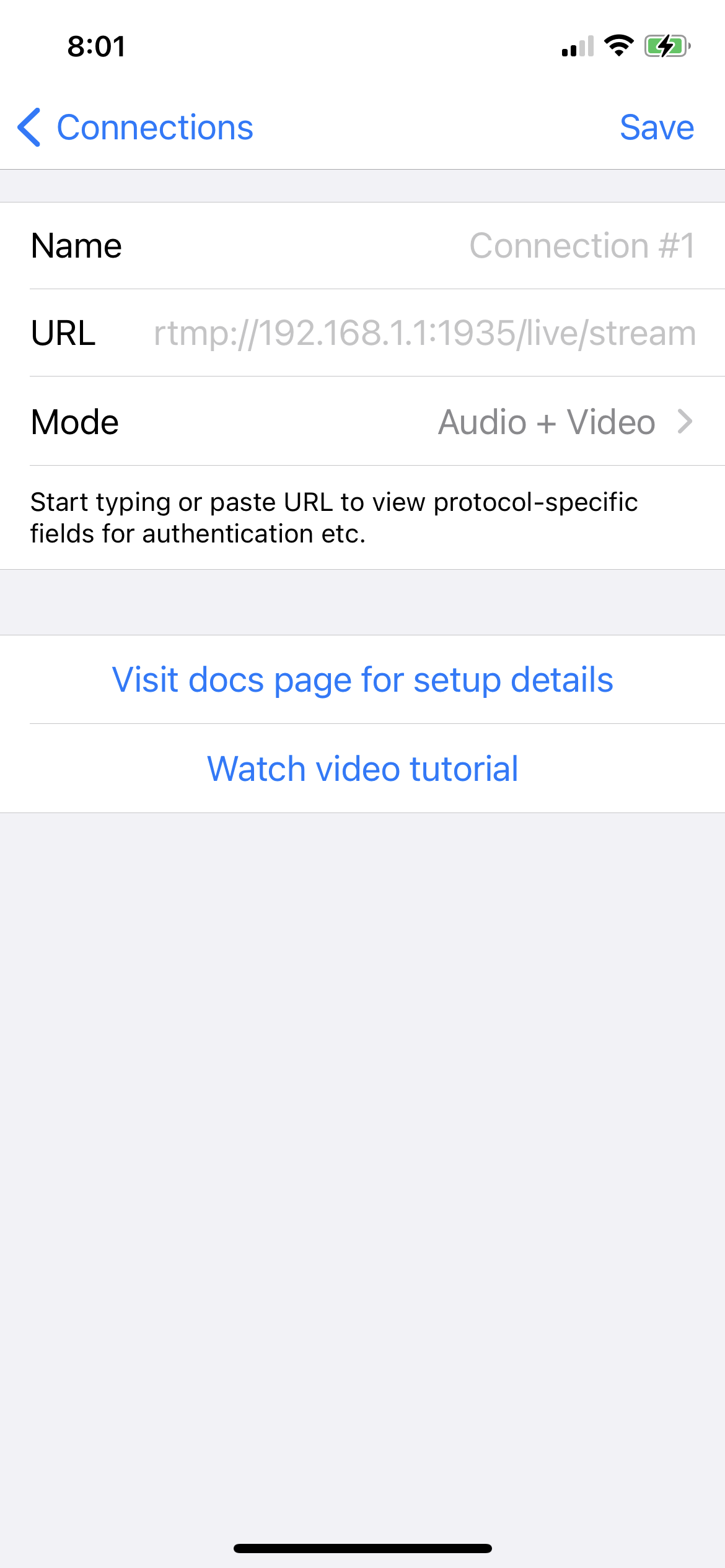
The next step is a little tricky. You need to combine two of the values you copied from YouTube into a single URL.
In your text/Word document, you have two values:
- Stream URL: rtmp://a.rtmp.youtube.com/live2
- Stream Key: f6w9-jfuw-3dqw-z64f-3x9b
You need to combine these together so that there is one URL. Start with the Stream URL, add a forward slash (/), then add the Stream Key.
The end result will look something like rtmp://a.rtmp.youtube.com/live2/f6w9-jfuw-3dqw-z64f-3x9b. This is the full URL to your live stream.
- Paste that full URL into the URL field on the New Connection page
- For the name, just use the same one as the video on YouTube (e.g. 1/17/2021 vs. Lakers).
- Leave the mode and everything else as it is.
- Click Save
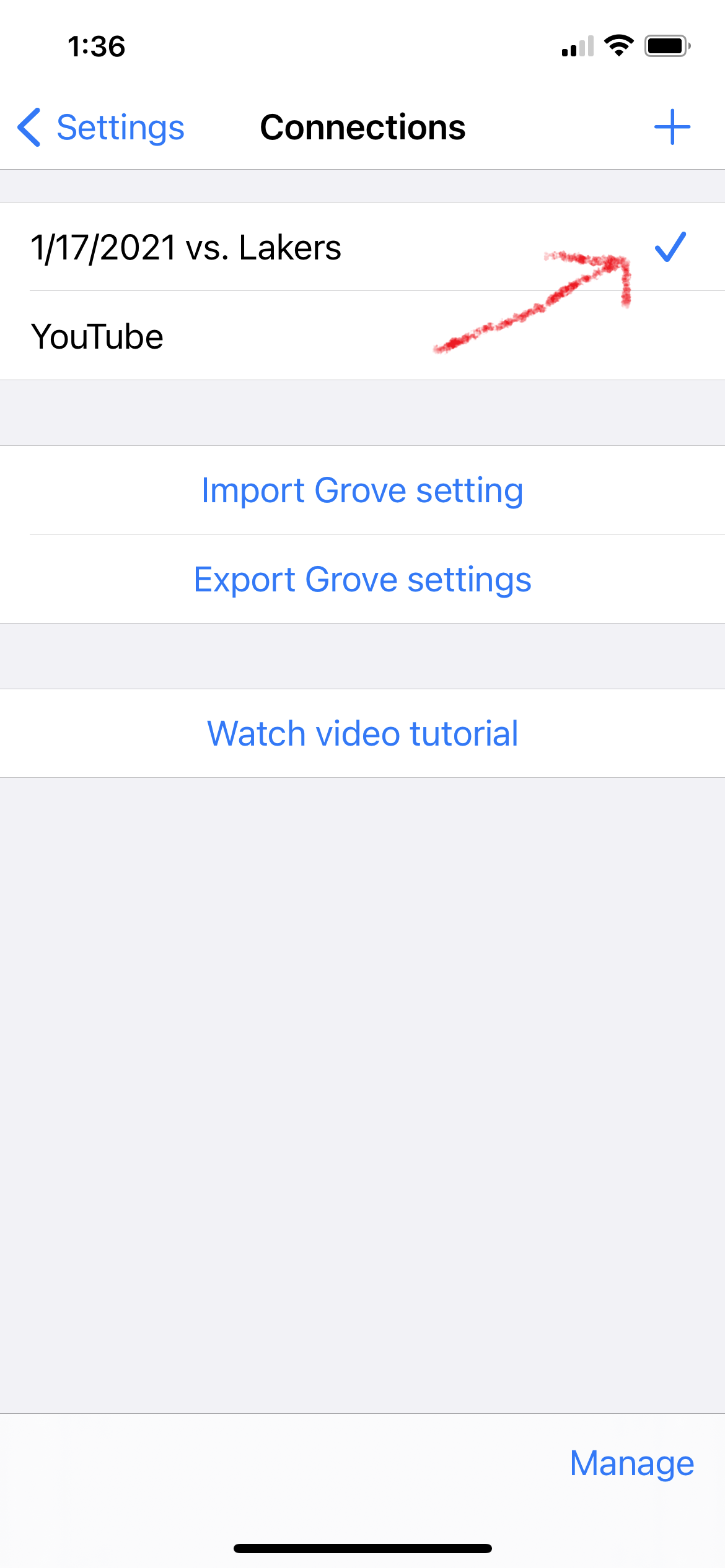
After saving the connection, make sure it is the only one with a check box next to it. Once you confirm that, you are ready to stream.
OPTIONAL: To have higher video quality, you can change the Settings > Video resolution to 1920x1080. This is full HD.
Go back to the main screen. If you click the big red button, recording starts. Click the red square and it stops.